Pages

Wednesday, January 12, 2011

iTunes Volume Purchase Program for Apps

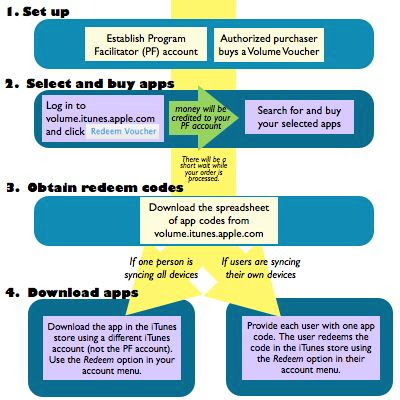
Before Apple clarified its iTunes store policies, it was common practice for educators to pay for an app one time and then load it on several devices. With the advent of the Volume Purchase Program and the new iTunes store Terms of Service, those days are past. If you haven't heard about the (relatively) new iTunes Volume Purchase Program, here's how it works -- at least for us.

First, you have to have an authorized purchaser set up a "master" account known as the Program Facilitator. The Program Facilitator purchases apps and receives the codes for downloading the apps (one code per device).

To get a Program Facilitator account, you have to have an authorized purchaser for your school or district contact your Apple education sales rep. There is limited information about this process on the Volume Purchase Program FAQ page. This is the only part of the process I am a little fuzzy on, as it was handled at the district level through our purchasing department.

Before you can buy an app, you need a Volume Voucher. This is essentially code you purchase and enter on the Volume Purchase Program site so you can buy apps. Vouchers can be purchased through your education sales representative. Once you have your Program Facilitator account and a Volume Voucher, you log in to volume.itunes.apple.com to redeem the voucher. This adds credit to your Program Facilitator account, which allows you to buy apps.

The Program Facilitator searches for and buys apps. After a short wait, a spreadsheet of Redeem Codes becomes available for download at volume.itunes.apple.com in the Program Facilitator account. Those codes can be distributed to users so they can download the app themselves; or, if you are syncing a set of iPads to a single computer, use one code to download the app and then maintain the rest of the codes for auditing purposes.
While this process may seem somewhat mysterious, it actually works pretty efficiently. It's nice to be able to receive codes that can be distributed to teachers or other uses who manage their own syncing, and although the price is considerably more than only buying the app once, at least most apps are discounted approximately 50%.

Monday, January 10, 2011

Accessing Web Content with Read It Later

I've been experimenting with Read It Later, a free app and website that allows you to save web pages for access on your iPad or other device. My colleague Begoña Cowan discovered this tool during a frenzy of app-hunting over the holiday break, and I think it has a lot of promise for organizing and sharing online resources for student access. Here's how it works.

The teacher logs in to a single shared account at readitlaterlist.com. There are a variety of third-party plug-ins and applications for managing Read It Later content, but so far I am content with the Read It Later bookmarklet. By dragging the bookmarklet to your Safari bookmarks bar, you enable your browser to save and tag web pages for future access.

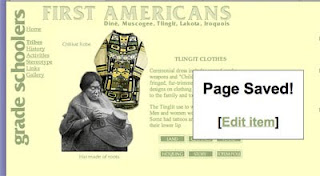
When you click the Read It Later bookmarklet, a box pops up
telling you the page has been saved. You can then tag or rename that page if you wish. I am tagging links with the room number of the students who will need the link, as well as the general topic. First graders are studying Native Americans right now, so I have tagged this page as 106 tlingit. Students in 106 who are studying the Tlingit tribe will be able to find this resource easily on the iPad.
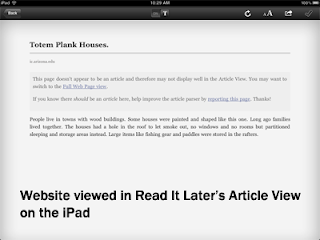
When viewing pages on the iPad in the Read It Later app, students can choose either the article view (text only) or the full web page view. The pages are downloaded to the iPad when the app is opened, so you can access the article later without an Internet connection.

Students can also add and tag sites as their research skills become more sophisticated, making Read It Later a handy shared repository of sites to support learning and research.

There are other apps, such as Instapaper and Evernote, that have similar functionality. I like the simplicity of Read It Later for our young students, but you may want to investigate other apps as well.

Tuesday, November 30, 2010

Collaborating with Simplenote

The upper grade students at Burley have a number of opportunities to communicate and collaborate electronically -- student blogs and wikis, education-focused social networking, iChat, and so on -- and we often remark on how engaged and focused students are with this type of communication. Students have told us that they like the opportunity to participate at their own pace and to read the ideas of others before chiming in. They say they participate more because they can share their ideas when they have them, rather than waiting to be called on or for someone else to finish.

Simplenote is a free app that allows students to collaborate in real time using the iPad. Each iPad is set up to access a single Simplenote account. As students create their own notes, a left-hand note navigation list displays all the notes in real time. Students can pull up one another's notes to get ideas and then return to their own note to do their own writing. The teacher can access all the notes (in real time, or after the lesson) by logging in to simplenoteapp.com.

To make this work with the students, we developed a lesson to model effective collaboration using Simplenote. We begin by talking to students about how they usually share ideas with one another. Students say that they turn and talk, or talk in their learning groups, or listen to other people when the teacher calls on them. Then we explain that the iPad can give them a new way to share their ideas with one another. Using a document camera and projector, we demonstrate how to create a note in Simplenote. Then, we have a student use another iPad to create a note. Students notice instantly that the student note appears on the teacher's screen. The teacher then goes in to the student's note, reads it, reflects on a new idea, and then incorporates that new idea into his or her own note. We explain that the purpose is for everyone to generate ideas about a particular topic, but at the end of class, we want students to be able to share one idea they got from another student's note. We also make it clear that they can only write in their own note and talk about how it would negatively affect our ability to work together if people don't follow that rule.

As the students work, we circulate and prompt students to check one another's notes for new ideas. We ask them what ideas they have gotten from their classmates. At the end of class, we gather on the rug and view the list of notes in the web browser at simplenoteapp.com. Student volunteers share the ideas they got from one another as we display the notes on the screen. In this way, students can concretely see the flow of ideas from one note to another and think about how this tool can help them work together.

It's pretty exciting for the students to be able to brainstorm with continuous and ongoing collaboration with the entire class. Students who have a hard time getting started can start by reading ideas of others. Students who are eager to jump in and can't wait can begin immediately and then expand on their initial ideas after reading classmates' notes. An additional benefit is that students are building early digital citizenship skills and, of course, applying their developing writing skills in a meaningful way. We're looking forward to applying this tool in student inquiry as students generate questions and brainstorm project ideas.

Tuesday, November 23, 2010

102 iPad Action!


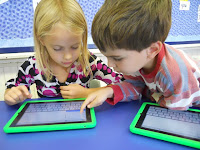
My first graders enjoyed using the iPads for their Poetry Assembly peformance! They used the whiteboard app to enhance their images and alliteration lines.
Our class continues to use the iPads during literacy and math centers. We are beginning to use them in the content area as well. We used them to research questions we had about the solar system and will continue using them for research during our upcoming Native American unit.

Audio Recordings Promote Fluency


This week we used Recorder HD in guided reading groups to monitor our fluency. For the past few days we talked about how good readers practice reading a piece over and over to make it sound nice and smooth. One group of students read It's Super Mouse! by Phyllis Root during their guided reading groups and as a supplemental text during their independent reading time. To celebrate this text prior to moving on to a new book, a small group of students created an audio recording of It's Super Mouse. Now, all students have access to the text and audio recording at our classroom listening center. The small group of students who recorded the text debriefed on their recording and made plans for enhancing their fluency in future recordings. As they shared the recording with the class, it was obvious that the group gained confidence as readers. They were excited to hear themselves read the text and share the stories with their friends. Using the iPad to create audio books or as tools for children to self-reflect on their reading fluency is easy and fun! I can't wait to increase the opportunities for my kids to use this in the future.


Monday, November 8, 2010

In the loop

One of the key details that an iPad school has to iron out is the content loop -- how to get stuff on to the iPad, and how to get student work off the iPad and into the hands of a teacher, peer editor, or other audience. Thanks to our Apple Professional Development leader, Dr. Bruce Ahlborn, we now have a plan for how we're going to do just that.

We had considered using the free DropBox app, which seemed like a great way to get content on to the iPad -- but maybe not so smooth at sending content back to the teacher. We have decided to use a MobileMe iDisk as our shared space. Each teacher will be able to access the iDisk from their Mac's desktop. This makes it possible for teachers to manage certain types of iPad content over wifi, rather than waiting for a manual sync.

Within the iDisk, we created folders for each teacher. Within each teacher folder, students will find a TO and a FROM folder. The TO folder is where students will submit their work. The FROM folder is for PDFs, templates, graphic organizers, pages of links, etc. that the students will receive from the teacher. We labeled the TO folder with arrows and asterisks to add some visual emphasis that we hope will help our young students navigate the iDisk effectively. Unfortunately, adding colors to folders in the Finder does not result in colored folders on the iPad; that would certainly be an improvement. Eventually we plan to add a third folder where students can exchange work and create content for one another.

We are spending a planning session next week further testing and streamlining the process for using the iDisk, and then we'll be introducing it to the students. Our iPads all have Pages installed, and we plan to create templates and graphic organizers and share them via iDisk for student use. The teachers are also preparing some PDF resources to guide student learning. We discovered that when PDFs are in the iDisk and then opened in iBooks, they remain on the bookshelf -- the student does not need to navigate back to the iDisk app to access that content later. We anticipate that having our iDisk content loop in place will enable more fluid access to content (with less frequent need for hard-wired syncing), and it will also enable students to begin creating content and publishing work using the iPad.


Monday, November 1, 2010

Spelling practice, math, and word study

Second grade teachers were ready for more options in their morning literacy centers, so the students have begun using three apps to practice their weekly spelling words. Our spelling program is individualized, and each student works on his or her own list of words each week -- no small management task! The iPads are enabling students to have independent practice opportunities with their words. They're using the iPad's built-in Notes app, Whiteboard lite, and ABC Magnetic Letters Lite to write and type the words -- all free apps. At no extra cost,we now have a multimodal spelling center up and running in a matter of a day!

Last week, my colleague Kristin Ziemke Fastabend brought the whole cart of iPads to her room for her math lesson. Using Whiteboard lite, students wrote number sentences on the screen as Kristin modeled the problems with manipulatives on a projector. Students were fully engaged in the process of expressing their math knowledge -- if you've never heard students beg for more math problems, then you should have been there with our first graders!

Afterwards, Kristin remarked on how easy it was for her to help students as she circulate around the room. If a student forgot an equals sign, for example, she could use her own finger to show the child where it should have gone. The activity was more engaging and easier to manage with the iPads. Even the simple difference of starting with a "blank slate" by erasing the screen each time made it easier for Kristin to assess and check for understanding as she went along, and it enabled students to focus only on solving the problem at hand.

Another whole-class iPad activity took place in Begoña Cowan's room and was similar to the lesson that our Reading Specialist, Sally Tajkowski, wrote about in an earlier post. Each student sat on the rug with an iPad carefully on his or her lap while Begoña challenged them to sound out and spell certain word families using letter patterns they are studying. The students were fully engaged, and using virtual magnetic letters was the only thing that made this activity possible -- rather than digging noisily through a bucket of plastic magnetic letters, students were finding the letters they needed in the alphabet and focusing on the letter sounds themselves. I'll be posting a video in the next few days.

This week we will have our first visit from our intrepid iPad coach extraordinaire, Dr. Bruce Ahlborn. We can't wait!

Tuesday, October 19, 2010

Testing, Testing 1,2,3....

Last week we began utilizing the BlueFire app on the iPads so students can record themselves while reading. Ms. Skibba came in again to do whole group instruction explaining the steps and guidelines for doing a fluency recordings. In addition, she created handy step-by-step instructions for each student to use and follow during their time at the center. The instructions are very detailed and help students to independently problem solve before they come to me while I am working with others.

Students read a selection from a book of their choice for 30-60 seconds out loud. After reading the selection, they rewind the tape to the beginning and put on their headphones to playback their recording. They are then able to listen to themselves reading the selection. This is such an excellent tool to give them a whole new dimension of listening to their words and reading. They can hear their voice, inflection, and fluency all within one small selection. Additionally, it allows them to hear mistakes they may be making but not catching while reading.

I have to say I was so impressed by my students and their work with the fluency recordings. I was a tad bit nervous about the noise levels while students were recording, but so far they have handled themselves wonderfully while at the center.

I would also like to say a big thank you to Ms. Skibba and Mrs. Sanders for coming in and helping to get things running last week! We are all so excited to continue learning and utilizing more tools on the iPads.

Monday, October 18, 2010

Reading Specialist Uses the IPads

I LOVE the iPad! Today was my second day using iPads with my guided reading groups. Each day I teach a phonics or word work mini lesson that corresponds with the guided reading book. Today I used the iPads with three first grade groups and a second grade group using the awesome ABC Magnetic Letters App. I demonstrated sounding out three letter words with my beginning readers in first grade. Instead of using a white board to draw each letter as I sounded it out, I used the iPad App to drag the letters on to the screen as I said the corresponding sound. The students were absolutely engrossed in this routine activity! I guess iPads are vastly more interesting to look at than a whiteboard! The students then used the iPads to sound out words on their own. It was wonderful to see how engaged the children were in sounding out and writing words. This App replaces both the whiteboard and magnetic letters that we sometimes use for word work. It can be frustrating for kids to search and search for a magnetic letter they can't find when creating words. With this App, the time it took to complete the minilesson was nearly cut in half because the letters are in alphabetical order and easier to find.

During the minilesson for a different first grade group, we worked on word families, such as hear, dear, and fear. It was so easy for children to write "ear" on the iPad and switch out the first letter to create new words in the family. During my second grade group, I used the iPads to teach about different endings on base words such as s, ed, and ing. The students immediately understood that the base word stays the same, such and the word "jump" and by switching out the "s" for the "ed" and "ing", it changes the meaning of the word.

In all three lessons, the children were excited to be using the iPads, the iPads had a meaningful and useful connection to the lesson, and their use decreased the total time to complete the minilesson. It's a win, win, win!

Wednesday, October 13, 2010

Lesson learned: be explicit!

You know how the first time you teach something you tend to overlook some key details? Kicking off the fluency recordings went sort of like that. By now (day 3), we've worked out the kinks. But it wasn't very smooth on our first try.
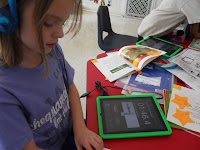
We were working with a group of 5 second graders at a time. The kids are using the built-in mics to record, and it took a fair amount of practice to get the students to speak at an appropriate volume, because I hadn't thought to model that. Since students practice being audible when reading to a live audience, they were a bit too audible for their practice recordings. This resulted in a lot of background noise on all the first recordings and general irritation on the part of our second graders. I also had forgotten to point out where the microphone is located and that recording on the iPad works best if they flip it around so the microphone and headphone jack are closest to them. These were issues that hadn't turned up when I tested it alone in an empty classroom -- the reality of a group of students working in a bustling classroom pointed out my blind spots pretty quickly.

Also, I had been so pleased with my lovely Blue Fire Screen Shots I neglected to realize that second graders wouldn't necessarily have the strategies to use a step-by-step guide like that. As with any reading and comprehension of printed materials, you have to be explicit.

Finally, my first attempt at a rubric was a little confusing for some kids. I revised it to make the layout more clear; here's the revised rubric.

Yesterday I introduced the fluency center to a second classroom of students, and what a difference! I modeled the appropriate volume and showed them how to monitor their own volume by watching the size of the "bumps" on screen. I showed them how to think of the headphone cable as an arrow pointing to where they should talk. Maybe most importantly, I went step by step through the Screen Shots and modeled how to use them as a resource when they aren't sure what to do. I also modeled completion of the Fluency Self-Check Rubric after a single recording and how to start again at the beginning for a second try.

I know "teach explicitly" isn't the most earth-shattering advice, but I think it is easy to overestimate what is intuitive for kids about technology, or to forget what issues will arise once the devices are in use by groups of students. I made the mistake of assuming a little too much and not being clear and explicit enough with the kids about the directions and the expectations. I forgot to show everything, not just tell. In an attempt take less classroom time with my explanation, I was less effective.

As a result of better teaching and more modeling, it's no surprise that the second and third days of fluency recordings were a huge improvement over the first. Now, we see the students reading, listening, reflecting, re-reading, practicing, and improving. The students were engaged and excited and genuinely focused on reading the passage better and better each time. We couldn't be more delighted with the students' progress -- as well as our own!