Pages

Tuesday, April 26, 2011

Ode to SonicPics

Oh, SonicPics, our new favorite app. I have to give credit to my colleague Mike Amante in New Hartford, New York, who casually mentioned this app during a recent recording of Michelle Bourgeois and Katie Morrow's excellent podcast, Always On. We are always on the lookout for new apps to support student media creation, and SonicPics has yet to disappoint.

SonicPics is an app that allows students to select photos from the iPad Photo Library and then record narration to create a simple video. Kids simply swipe from one photo to the next as they talk and record their thinking. The final product can be e-mailed to the teacher as an m4v video file; if the file is too large, the teacher can transmit the video directly to the classroom computer over the network using an IP address provided by SonicPics.

SonicPics allows teachers to capture students' thinking visually and verbally, which is so powerful for young learners who may not yet be fluent readers and writers. The final products can be synced back to the iPad or shared with students via your iDisk or Dropbox. This gives students an audience and allows them to share ideas with their peers. Audio recordings also give students opportunities to self-reflec
t and self- assess, because they can listen to their recordings and re-record if they want to make improvements.

We have countless ideas for how to use this app and plan to try them all! Here are a few:
  1. Create multimedia books. Students create illustrations in a drawing app like Whiteboard Lite or Drawing Pad, save the illustrations to Photos, and then pull them up in SonicPics to record the words.
  2. Document a classroom experience. Load photos of a field trip, science experiment, special visitor, etc. onto the iPad and have students narrate the photos.
  3. Assess a learning experience. Load photos of an individual or group working in the classroom, and then have students narrate those photos to explain their process and reflect on their learning.
  4. Retell a story. Have students draw pictures to represent the beginning, middle, and end of a story, and then record their retelling.
  5. Generate questions to support inquiry. Load content-related photos on the iPad. Have students select 3-5 images and record their questions. This can also be an assessment piece to collect data about the level of thinking and questioning students are engaged in.
  6. Create a podcast. Use photos or student-created illustrations or diagrams as your images. Consider content-oriented podcasts, news about school, book reviews, issue-oriented podcasts -- the sky is the limit.
  7. Create a weather report. Take photos out the window and narrate them with data from any weather app or website. Share it on your class home page.
If there are any SonicPics users out there, we would love to hear how you are using this app to support student learning.

Thursday, April 7, 2011

Device Management Tips

Here are some basic, nuts-and-bolts tips that have helped our program run smoothly. Keep in mind that we have 34 iPads in one shared cart, and those devices are shared between 5 classrooms in grades 1 and 2.

Consider color-coded cases for your iPad. It is much easier for first graders to remember “go get the blue ones” than to remember “go get devices 13-18." We use the brightly-colored MiniSuit by Vizu, which is available from amazon.com.

Make the wallpaper image a jpeg of the device number. You can also reinforce the color-coding by matching the image color to the case color.

Have a landing pad for devices on top of the cart, and keep it clear of clutter. We put a colorful placemat on top of the cart. The mat is wide enough to accommodate 2 small stacks of iPads. Student tech teams need a safe place to put their stack of 2-3 devices down while they carefully slide them into the cart one at a time. They also need a place to set them while they are closing and locking the cart; trying to do so while holding iPads doesn’t work so well.

If your iPad devices are shared between classrooms, consider creating an electronic sign-out. We use a spreadsheet created at docs.google.com. We set the sharing permissions so that anyone could edit the spreadsheet, and then iPad teachers bookmarked the spreadsheet for easy access. (Only the iPad teachers can edit, because they're the only ones who have the link.)

Keep headphones in small crates or baskets on top of the cart, and keep a fixed number of headphones in each basket. Because each class uses 6 iPads at a time during literacy centers, we keep 6 in a basket. When kids come to grab the iPads, a "headphone helper" grabs a crate. We use the small and easy to store Califone 3060AV headphones. The cords are a bit too long, but we like the individual volume control.

Keep microfiber cleaning cloths in a basket on top of the cart. Have your student iPad team polish screens as they put the devices away. KlearScreen works great for extra smudgy screens, but if you have kids using this sprayable product, provide careful instruction so you don't end up with soggy iPads. If you have sticker shock on the KlearScreen website, a very slightly damp lint-free cloth is a thriftier option for ferocious fingerprints.

Appoint someone -- a staff member, parent volunteer, or older student -- to check the cart at the end of each day, ensure the devices are plugged in, and lock the cart. It's a lot of extra responsibility to ask the teacher who hosts the cart to take care of this -- especially when he or she is already putting up with the added foot traffic of student iPad teams.

Friday, March 25, 2011

Prehistoric Times Inquiry Research

This quarter we were studying Prehistoric Times in science. My first graders used the “Dinos” app to help guide their inquiry research. They read about many dinosaurs in the fact cards and used that information as a tool for their own inquiry projects. They used the research to present their own learning in different ways including; big books, dioramas and poster board presentations. They will be able to share all the research on our Explore More Day!

Friday, February 18, 2011

Assessing Student Learning


In the last few weeks I've been using the iPad as a tool for student reflection and assessment. To assess students' understanding of Native Americans, I posted 5 photos of different aspects of Native American life to the Burley iDisk. Students viewed all the images and then selected one they wanted to talk about.

Students copied one photo in iDisk and then opened a blank document in Pages. Students pasted their Native American photo and then shared what they knew about that aspect of Native American life.

Once students documented their understanding, they emailed the Pages document to me. I reviewed students' thinking, identified misconceptions and opportunities for reteaching and assessed overall understanding.

My students are becoming experts at using Pages. I've noticed that they have increased ability to create content for their peers and take their thinking public. This week each child published a piece of poetry using Pages and paired their text with an illustration using Whiteboard. I am excited to find additional opportunities for assessing student learning using the iPad!

Monday, February 7, 2011

Student publishing on the iPad

One of the best ways to motivate student writers is to give them an authentic audience for their work. The iPad provides an exciting way for students to publish work for one another. It was incredible to see kids' eyes light up when they saw the book they had created sitting on the iBooks shelf. They felt incredibly proud, and the iPad made it possible for each and every student to hold and examine a full-color publication of their classmates' work -- something that is difficult or impossible without the iPad. One of our goals is to use the iPad to allow students to begin to create resources for one another, which gives the students a sense of ownership over their own learning. Through this initial publishing process, we have figured out one way to start putting students in charge of their own content creation.

Here's how we did it:
  1. After reading about and studying particular topics, students in our second grade used the iPad to make documents in Pages. They imported drawings they had made in Drawing Pad or Whiteboard Lite, added captions and text, and used arrows and text boxes to create diagrams.
  2. We gathered the student Pages documents via e-mail. All the iPads use a single e-mail account, and the teachers are the only contacts. Students e-mailed us the documents as attachments. (You could also have them send in their work via DropBox or iDisk. If they sent their file directly to iDisk as a PDF, other kids could pull it up immediately and open it in iBooks -- instant publishing! The only reason we didn't do this is because we were assembling pages from multiple students' iPads into a single book.)
  3. We took all the related Pages documents and assembled them into a single Pages document using copy and paste. Students designed a front page to serve as the book cover. We then exported them as PDFs, dragged them to iTunes, and synced them to all the iPads. Our virtual bookshelf of student work is growing!


Wednesday, January 12, 2011

iTunes Volume Purchase Program for Apps

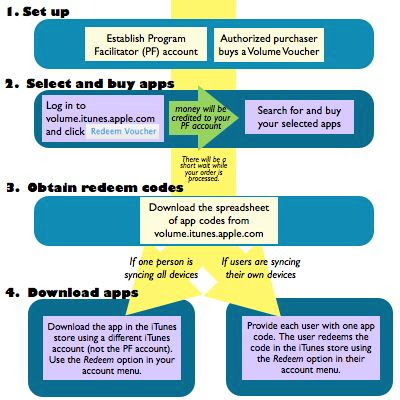
Before Apple clarified its iTunes store policies, it was common practice for educators to pay for an app one time and then load it on several devices. With the advent of the Volume Purchase Program and the new iTunes store Terms of Service, those days are past. If you haven't heard about the (relatively) new iTunes Volume Purchase Program, here's how it works -- at least for us.

First, you have to have an authorized purchaser set up a "master" account known as the Program Facilitator. The Program Facilitator purchases apps and receives the codes for downloading the apps (one code per device).

To get a Program Facilitator account, you have to have an authorized purchaser for your school or district contact your Apple education sales rep. There is limited information about this process on the Volume Purchase Program FAQ page. This is the only part of the process I am a little fuzzy on, as it was handled at the district level through our purchasing department.

Before you can buy an app, you need a Volume Voucher. This is essentially code you purchase and enter on the Volume Purchase Program site so you can buy apps. Vouchers can be purchased through your education sales representative. Once you have your Program Facilitator account and a Volume Voucher, you log in to volume.itunes.apple.com to redeem the voucher. This adds credit to your Program Facilitator account, which allows you to buy apps.

The Program Facilitator searches for and buys apps. After a short wait, a spreadsheet of Redeem Codes becomes available for download at volume.itunes.apple.com in the Program Facilitator account. Those codes can be distributed to users so they can download the app themselves; or, if you are syncing a set of iPads to a single computer, use one code to download the app and then maintain the rest of the codes for auditing purposes.
While this process may seem somewhat mysterious, it actually works pretty efficiently. It's nice to be able to receive codes that can be distributed to teachers or other uses who manage their own syncing, and although the price is considerably more than only buying the app once, at least most apps are discounted approximately 50%.


Monday, January 10, 2011

Accessing Web Content with Read It Later

I've been experimenting with Read It Later, a free app and website that allows you to save web pages for access on your iPad or other device. My colleague BegoƱa Cowan discovered this tool during a frenzy of app-hunting over the holiday break, and I think it has a lot of promise for organizing and sharing online resources for student access. Here's how it works.

The teacher logs in to a single shared account at readitlaterlist.com. There are a variety of third-party plug-ins and applications for managing Read It Later content, but so far I am content with the Read It Later bookmarklet. By dragging the bookmarklet to your Safari bookmarks bar, you enable your browser to save and tag web pages for future access.

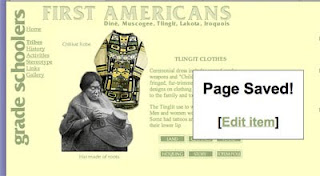
When you click the Read It Later bookmarklet, a box pops up
telling you the page has been saved. You can then tag or rename that page if you wish. I am tagging links with the room number of the students who will need the link, as well as the general topic. First graders are studying Native Americans right now, so I have tagged this page as 106 tlingit. Students in 106 who are studying the Tlingit tribe will be able to find this resource easily on the iPad.
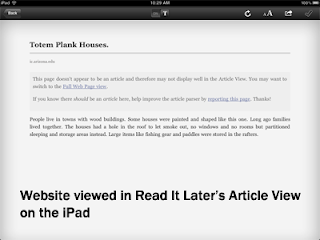
When viewing pages on the iPad in the Read It Later app, students can choose either the article view (text only) or the full web page view. The pages are downloaded to the iPad when the app is opened, so you can access the article later without an Internet connection.

Students can also add and tag sites as their research skills become more sophisticated, making Read It Later a handy shared repository of sites to support learning and research.

There are other apps, such as Instapaper and Evernote, that have similar functionality. I like the simplicity of Read It Later for our young students, but you may want to investigate other apps as well.

Tuesday, November 30, 2010

Collaborating with Simplenote

The upper grade students at Burley have a number of opportunities to communicate and collaborate electronically -- student blogs and wikis, education-focused social networking, iChat, and so on -- and we often remark on how engaged and focused students are with this type of communication. Students have told us that they like the opportunity to participate at their own pace and to read the ideas of others before chiming in. They say they participate more because they can share their ideas when they have them, rather than waiting to be called on or for someone else to finish.

Simplenote is a free app that allows students to collaborate in real time using the iPad. Each iPad is set up to access a single Simplenote account. As students create their own notes, a left-hand note navigation list displays all the notes in real time. Students can pull up one another's notes to get ideas and then return to their own note to do their own writing. The teacher can access all the notes (in real time, or after the lesson) by logging in to simplenoteapp.com.

To make this work with the students, we developed a lesson to model effective collaboration using Simplenote. We begin by talking to students about how they usually share ideas with one another. Students say that they turn and talk, or talk in their learning groups, or listen to other people when the teacher calls on them. Then we explain that the iPad can give them a new way to share their ideas with one another. Using a document camera and projector, we demonstrate how to create a note in Simplenote. Then, we have a student use another iPad to create a note. Students notice instantly that the student note appears on the teacher's screen. The teacher then goes in to the student's note, reads it, reflects on a new idea, and then incorporates that new idea into his or her own note. We explain that the purpose is for everyone to generate ideas about a particular topic, but at the end of class, we want students to be able to share one idea they got from another student's note. We also make it clear that they can only write in their own note and talk about how it would negatively affect our ability to work together if people don't follow that rule.

As the students work, we circulate and prompt students to check one another's notes for new ideas. We ask them what ideas they have gotten from their classmates. At the end of class, we gather on the rug and view the list of notes in the web browser at simplenoteapp.com. Student volunteers share the ideas they got from one another as we display the notes on the screen. In this way, students can concretely see the flow of ideas from one note to another and think about how this tool can help them work together.

It's pretty exciting for the students to be able to brainstorm with continuous and ongoing collaboration with the entire class. Students who have a hard time getting started can start by reading ideas of others. Students who are eager to jump in and can't wait can begin immediately and then expand on their initial ideas after reading classmates' notes. An additional benefit is that students are building early digital citizenship skills and, of course, applying their developing writing skills in a meaningful way. We're looking forward to applying this tool in student inquiry as students generate questions and brainstorm project ideas.

Tuesday, November 23, 2010

102 iPad Action!


My first graders enjoyed using the iPads for their Poetry Assembly peformance! They used the whiteboard app to enhance their images and alliteration lines.
Our class continues to use the iPads during literacy and math centers. We are beginning to use them in the content area as well. We used them to research questions we had about the solar system and will continue using them for research during our upcoming Native American unit.

Audio Recordings Promote Fluency


This week we used Recorder HD in guided reading groups to monitor our fluency. For the past few days we talked about how good readers practice reading a piece over and over to make it sound nice and smooth. One group of students read It's Super Mouse! by Phyllis Root during their guided reading groups and as a supplemental text during their independent reading time. To celebrate this text prior to moving on to a new book, a small group of students created an audio recording of It's Super Mouse. Now, all students have access to the text and audio recording at our classroom listening center. The small group of students who recorded the text debriefed on their recording and made plans for enhancing their fluency in future recordings. As they shared the recording with the class, it was obvious that the group gained confidence as readers. They were excited to hear themselves read the text and share the stories with their friends. Using the iPad to create audio books or as tools for children to self-reflect on their reading fluency is easy and fun! I can't wait to increase the opportunities for my kids to use this in the future.