Pages

Tuesday, December 4, 2012

Tech Tips You Can Try Tomorrow

Curious about technology in the classroom, but don't know where to start?  

Here are few tech tools that are easy to use and have a high impact on student learning.

Wonderopolis
Make wonder and inquiry a part of your weekly routine! Visit Wonderopolis.org and follow along as they ask questions, post a blog and share photo and video resources about a variety of topics.  Wonderopolis is a great site for finding short, nonfiction text for readers of all ages.  Wonderopolis is also a great site to use as a mentor text for blogging.  We use it before we introduce blogs to identify what a blog looks like and sounds like, as well as what comments look like and sound like.  If you’re excited to teach students about the power of connection, post a comment or submit a wonder; Wonderopolis almost always responds to students and teachers.  You can follow them on Twitter @Wonderopolis.


TodaysMeet
TodaysMeet.com is a free, web-based tool that allows users to backchannel a discussion online.  A teacher can create a chat room that is available only to users who have the link (ie, your class).  Once students access the website via the link they log on with their name and engage in a collaborative discussion online. Students can view all the responses as they are posted live to the discussion site. Anyone with the link can contribute, so you can invite students to collaborate across classrooms and with others who are not present, provided they have the link. (Think—cross-school, cross-district, cross-continent collaboration!). It's great for staff meetings too!


Croak.it
Croak.it is a free website that allows the user to record 30 second audio clips.  The audio recording is then uploaded to a personalized website and available to anyone who has the link.  The developers created the site for users to  “Push. Speak. Share.” and the simplicity is amazing.  Even more unbelievable, Croak.it also has a FREE app available for iPhone and Android!  Use Croak.it to create student reflections, share book talks and differentiate with audio instructions.  This is a versatile little tool with hundreds of uses.  Croak.it!


QR Codes
A QR code, or quick response code, is a matrix barcode that holds information about a tool or product.  Using a QR code with a QR scan app provides students quick access to a website without having to type the URL. We use QR codes to distribute websites quickly and easily to students during lessons and create our own QR codes using the website qrstuff.com.
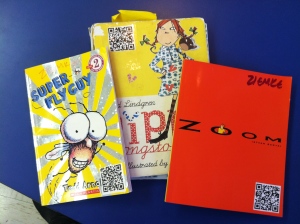
At our school we use QR codes to link to audio book recommendations that we attach to the front of books.  As kids “shop” for books in our library, they can scan the QR code to hear a book review created by another student.  Inviting students to create book reviews by students, for students empowers them as valuable contributors to our reading community, expands their audience and builds a buzz for books they love. 


Songify
Songify is a fun app that converts the words or phrases you speak into a remixed song. Songify scrubs the vocal track and adds preprogrammed beats and background music. The basic touch-to-start and touch-to-stop technology provides ease of use for all ages.  This app embraces multi-modal learning and easily differentiates instruction.  Students love to create songs to synthesize their learning during an inquiry circle. Oftentimes the songs created in class—including Terra Cotta Warriors and the Nile River—become classroom hits. As we know, kids remember information that is set to music so I use it to create songs for math facts, spelling patterns and comprehension strategies.


Google Form
Google form is a free online tool for gathering information in a streamlined fashion. A Google form can be created easily in Google Drive and shared via a link for others to complete.  Each Google form you create collects responses in a spreadsheet stored in Google Drive.  The spreadsheet can be sorted and grouped in a variety of ways making the data easy to access and interpret.  Google form is handy tool for creating quizzes, surveying parents or gathering feedback regarding inquiry circles and book clubs.


Twitter
Create a classroom Twitter account to connect with other students and teachers.  Post this tweet:

“Looking for other (insert grade or subject) classrooms to connect with. Anyone tweeting with their class? #(grade/subject)chat”

People will contact you and then you can follow them.  Share your Twitter handle (your Twitter name) with your families and invite them to follow your class.  Start by tweeting student reflections one day a week.  Ask kids to share something they’ve learned or are wonder. These reflection tweets provide your families a “window” into your classroom and the curriculum.  Also use Twitter as a place to crowdsource information. Post mini-inquiry questions and see who answers.  Have fun and model connected learning! Twitter.com
You can follow our class @Burley106.


Kidblog
Kidblog.org is an amazing, safe blogging site created for teachers and students.  Teachers can create a class for free and develop accounts for students that are not dependent on an email address.  This is specifically helpful for younger learners who don't have an email.  Once a class is created, students can log on from any device that connects to the internet and post a blog.  You can use your blog for a variety of purposes—writing about reading, writer’s workshop, or as a general repository for student thinking. You can view our Kidblog here.


Monday, November 19, 2012

Croak.it! So amazing I can't imagine life without it!

Yay! I love you, Croak.it! You’re amazing!

I heard about Croak.it a few months ago on #1stchat (a weekly conversation about 1st grade on Twitter every Sunday at 7:00 CST).  I believe the amazing Karen Lireman  tipped me off to it and since then, life hasn’t been the same.

croak-it

Croak.it is a free website that allows the user to record 30 second audio clips.  The audio recording is then uploaded to a personalized website and available to anyone who has the link.  The developers created the site for users to “Push. Speak. Share.” and the simplicity is amazing.  Even more unbelievable is that Croak.it also has a FREE app available for iPhone and Android!

So what does this mean for education?

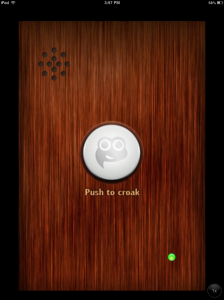
In my class, I’ve loaded each iPad with the Croak.it app.  It’s so easy for students to capture audio recordings as they simply push the white circle to start and stop their recording.

photo 1

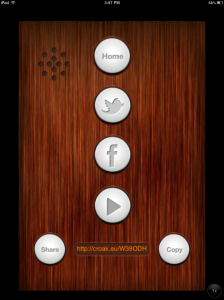
Once they stop the recording they’re directed to the sharing screen…

photo 2 

…and then email the link to me or copy it to embed in another location.  As the teacher, I can share their Croak via Twitter so our followers can get a snapshot of what we’re learning.

Because each Croak.it recording has a personalized web address, it eliminates a lot of the “middleman” work I use to have to do as the teacher finding a home for students’ audio recordings.  Previously, I loaded audio recordings to my classroom website or a dummy audio recording storage space for students to access via the web. Now, their audio recordings already have a “web home” so I can quickly and directly link to it.

This has dramatically enhanced our use of QR codes in the classroom.  Before, it was cumbersome to create a site for the audio, publish it, and then link a QR to the site. Now, I simply drop the Croak.it link into the QR site and viola! We have a QR that links to audio.

This is tremendously helpful for differentiating instruction. When I want to provide verbal directions for students on an assessment or increase access to an article that may be too challenging for some students to decode, I create an audio file using Croak.it and link that to a QR code students can scan.

We’re also using them to create book talks.  Students use Croak.it to create a short audio book reviews.  They email me the link to their Croak and then I create a QR code for the link (below, an example from qrstuff.com).

QR stuff.com

I print out the QR code and students attach the code to the book they’re recommending.  When students shop for a book during independent reading, they can scan the QR and hear the book recommendation their peer created using Croak.it.  Book reviews created by students, for students are empowering for my young readers as they are excited to hear what books their peers suggest.  As early childhood educators have long known, students are capable of comprehending and telling much more than what they may be able to express in writing; this is evident as we depart from the traditional book review and provide opportunities for creating these audio book talks.  These audio book reviews create energy for reading and a book “buzz” for what’s hot right now in 1st grade.  In addition, they help readers find “just right” text and foster independence as kids have tools and strategies for locating the perfect read.

IMG_1641 

Scan the QR below to listen to a student book review:
Book review Pippi Longstocking

As you can tell, I’m very excited about Croak.it and suggest you check it out! It’s versatile and can be used across the curriculum as something students can create or as a tool teachers can use to differentiate and support student learning.  I think of new ways to use it almost every week and am thrilled to have it as a tool in my classroom.  So go ahead, Croak.it!

Saturday, November 3, 2012

#HurricaneSandy: An Authentic Twitter Adventure

Last weekend my student visited NYC and got stuck as Hurricane Sandy rolled in.  Luckily, his family was able to take shelter at a friend’s house in Brooklyn.  On Monday morning, I projected our classroom Twitter account on the Apple TV and suggested we tweet our classmate to see if he was ok.

He responded much to the joy of my six and seven year-olds.  

After connecting with he and his mom via Twitter, I asked if they could update us throughout the day.  The family was generous with their time and tweeted frequent weather reports and photos from the storm. 


As our day continued, my class used The Weather Channel app to learn more about Hurricane Sandy.  We looked at radar maps and talked about the timing of the storm and how it would fall on a full moon when tides are at their highest which would cause flooding in many areas (a nice connection to our current solar system inquiry).

After seeing photos and short video clips on The Weather Channel, my class had lots of questions. Here are few they tweeted to their classmate:


My student in NYC took the role of Hurricane Sandy reporter very seriously and answered all the questions his friends posted. 


In class, at least once every hour, students asked, “Did we get any new tweets?”  I sent an email to our staff and invited other classrooms to learn along with us via Twitter. Soon, our 1st grade friend was sharing his storm experiences with our school.

The following day our Hurricane Sandy reporter continued to update us in the aftermath of the storm.  He walked around Brooklyn and shot various short videos that he posted to Twitter explaining some of the damage and storm clean-up measures.  Back in class, my students felt knowledgeable about the storm and were excited to learn more.  It also became an outlet for kids to connect with their classmate, since he would miss several days of school.


As the week progressed we continued to get updates from our reporter.  Checking in with Twitter became an opportunity to connect with our friend who would end up being out of school all week.  Throughout the week I watched my students—both near and far—share their learning and use social media to connect and collaborate.  Hurricane Sandy provided us an authentic opportunity to thoughtfully use social media in the classroom.   

Here are a few take-aways:

My students were empowered to be part of a learning network that was for students, by students.  So often, young children only have access to information that is filtered through an adult channel. While oftentimes that is appropriate, kids also need the model of other children as information providers.  By watching a peer research, report and field questions, student now have a "mentor" experience for what it looks like and sounds like to be an information sharer.  As Peter H. Johnston shared in Choice Words (2004) kids need to visualize themselves as a "can do" kid.  When young learners internalize the belief that "I'm the kind of kid who works as a reporter. I'm the kind of kid who asks good questions. I'm the kind of kid who ________," they experience the success, feedback and confidence that inspires them to make additional attempts in the future. Over time, this repetitive process produces kids who desire to think, learn, share and are inspired to do it again and again. My students were thrilled to see their classmate work as a reporter and now believe that any first grade student can do this important work. 

For the first time,  students saw Twitter as a place to ask questions, conduct research and gather new information.  Previously we had only used it to tell others about our learning. Now, students see Twitter as a tool for learning.  I spend a lot of time in first grade teaching my students where they can go to find answers to their questions; now they can add school-supervised Twitter to their list of resources. 

Connecting with a classmate via Twitter allowed students to emotionally process the storm.  Their peer told about his safety plan and how residents were told to prepare for the storm.  My students were able to see that unusual things--like superstorms--do happen, but that adults around the country prepare for these events and have a plan for when they occur. Watching their peer's video tweets and seeing NYC clean up and get back to normal was therapeutic for all  involved.


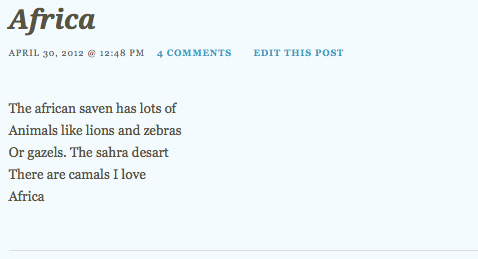
After tweeting and blogging to our reporter, my class now sees social media as an effective tool for connecting with others.  In addition to our classroom tweets, each day students commented on his Kidblog.  Students posted comments to see how he was doing or to ask for an update on the hurricane.  As a result of this collaborative learning experience, my kids now think like connected learners.  This was apparent Friday afternoon as we said goodbye to a student who was moving.  As students sat on the rug and said goodbye and good luck to their friend, one girl said,  "Make sure to tweet us ok?  And send some of those video tweets so we can learn about your new house and your new school." Another child chimed in, "And leave lots of comments on our blog!" 

YES! I cheered silently in my head as I saw my students think like connected, empowered learners.  This is why we do this!  I am very grateful to my student and his family for engaging in this authentic learning experience.  Together, we have provided students a foundational experience for using social media in the classroom. I can't wait to see what we learn next!


Do you have a classroom Twitter account?  We'd love to connect with you! Follow us @Burley106

Video used with permission from the family


Friday, October 26, 2012

Making Book Trailers

Image created on the iPad using Snapseed,
PS Express, and Keynote.
Last year I tried my hand at having my class make book trailers.  They did a decent job given that I wasn't quite sure how to jump into this new medium.  Well, this year we've learned from the past and I'm proud to say that the fifth graders are creating book trailers that are better than ever! 

One of the issues that we had last year is that we didn't have any student created examples to look at.  While the professional ones are nice to get a feel for the genre it helps to have examples that are within the students' reach.  This also gave us the opportunity to examine them and notice which elements we thought worked well and which elements needed improvement.  Once we spent some time immersing ourselves in the genre we began planning.  I ask students to consider what things they would explicitly and implicitly share with their audience, how they would build the mood and tone of the trailers, and what types of images they would use to accomplish this.

We also addressed copyright issues.  As fifth graders, they are ready to think about intellectual property and what that means.  Students were asked to create all of their own images or they could use stock images that I found through Photopin and give credit to the artist.  (I pulled appropriate images to share with them through Dropbox and organized them by the search term I used so that I could locate the links to give credit later.)

Before students started I did a quick tour of some of the apps they might use to create or edit images.  These included Drawing Pad, Snapseed, PS Express, Scribblify, Magnetic Letters, and Keynote.  We spent several days just creating images for the trailers before students even began with iMovie.  Once students had several images I did a quick tour of iMovie, showing them some basics on how to get started.  Over the next few days I or a student periodically introduced small things like how to lengthen or change transitions and how to add sound effects.  This workshop model enabled students to experiment as they worked and internalize how to use iMovie to achieve the desired effect.  I also gave students a checklist to use as they worked to help them reflect on the images, music, and overall feel of their book trailer.  To see our final products please visit our 302 Book Trailers Vimeo Channel!


Sunday, October 7, 2012

Back to the Beginning

Even though it’s October it still feels very much like the beginning of the year.  One of  the first thoughts that many teachers have about their students is “they look so little!”  It’s true.  Those tall confident students that left us have gone on to be “little” to next year’s teacher and we have our own new crop of “little” people to educate.  This becomes even more pronounced in a technology classroom.  Everything takes longer, typing, starting, opening, finding, searching.  Whatever it is they need time to figure it out.  Patience is key.  So what can we do?
  • Remember to go slow: after all many of our students are experiencing some of these technology tools for the first time.  Even if they have devices at home they probably don’t use them for much more than playing games or surfing the internet.
  • Find your specialists: there will be some students who do know how to do things or pick them up very quickly.  Start sending kids their way to address minor issues and questions.  Have them teach a quick lesson to the class on some basics.
  • Create lots of visuals: Anchor charts for technology are just as important as they are in every other subject.  These visual reminders help students to know what to do and to start developing a sense of independence.
  • Be realistic:  Things will take more time.  They just will.  You have to go slow to go fast later.  It’s okay.
  • Build from the ground up:  When I have students learning a new app I use it a few times in either the same subject or across subjects within a week.  Their first “project” or experience is filled with play and experimentation.  As we gather examples from the class I start to show student work and we tease out elements or things the class has done that we like and want to emulate.

Wednesday, September 19, 2012

What does "transformative" mean?


You have probably heard people describe the iPad as "transformative" in the classroom. However, it's important to define what we mean by that term and to be clear about the very real benefits that mobile technology can offer. At Burley, we see the greatest transformation in key classroom relationships:  the relationship of the students to their work, the relationship between students and other students, and the relationship of students to the process of assessing and reflecting upon their own work. These are three places where we see real transformation, and these are themes we are looking to expand upon as we enter year three of our iPad adventures.  

1.  Student work and content creation.
 Kids in our 1:1 classrooms are creating more types of content that can be shared more readily with more people than ever before.  This fundamentally changes the nature of student work; kids see themselves as experts, teachers of others, and authors.  This leads them to ask better questions, investigate original ideas, and express themselves with creativity and passion.  I know this is a common argument for the use of technology, but I can't believe the difference mobility and 1:1 make in this area. Media creation and high-quality publishing are seamless parts of the student experience and environment, because the technology is right there with them at all times. The size and portability of the iPad support a collaborative, flexible, and creative learning environment. That makes a difference. Here are some questions to push ourselves in the coming year:
  • What are the best ways to share different types of digital student work?
  • How can we access a wide, engaged audience for student work, and how do we make the greatest educational use of our access to that audience?
  • How can we ensure that student projects have real relevance and meaning beyond the classroom walls?
  • How can we use the iPad to open up more opportunities for students to advocate for issues they are passionate about?

2.  Student communication and collaboration.  With ongoing access to web 2.0 tools, kids have more access to their peers' ideas, feedback, and questions than ever before.  They use their PLN (peer learning network) to solve problems and explore ideas, and peer expertise is valued.  This elevates the role of the student and increases active participation in learning. The PLN changes how students see themselves and one another and gives them a greater sense of agency. Web 2.0 tools also enable students to understand the role of the Internet and social media in communication and learning, and to practice safe and appropriate online interaction in a teacher-supported environment. Kidblog and Edmodo are two key tools we have used in past years, and we look to build in this area for year three. These are among the questions we will explore:
  • How do we scaffold the experience of using online collaborative tools so that we can eventually turn over the content and management of those tools to the students?
  • What is the appropriate balance between teacher-guided blogging and open, student-directed blogging? Is there a continuum for this across grades 1-8?
  • How often do we need to provide instructional refreshers on appropriate purpose and tone for educational social media?
  • How can we continue to use social media to empower students, and to expand the authentic purpose and audience for student writing and communication?

3.  Student self-assessment and reflection.  Using the iPad, kids can capture more of their thinking in more ways than ever.  They can snap a photo of something they have created or record a quick verbal reflection or video.  This opens up rich opportunities for students to self-assess and track their own learning.  When kids have access to vivid records of their own thinking, they can develop habits of mind that promote ongoing reflection and personal academic growth. However, maximizing the benefits of digital reflection by making it systematic and organized will be an area of focus in the coming year, guided by questions like these:

  • What are the best digital tools for documenting, archiving, and sharing student self-assessment and reflection?
  • What role can self-assessment artifacts play in teacher assessment and instructional decision-making, and what are the best systems for streamlining this process? 
  • At what point are students able to take full ownership of their own reflective process?

As often as we hear the word "transformative," we invite all of our iPad colleagues to take a look at your classrooms and identify specific places where you are really seeing that fundamental change in how students learn, share, communicate, create, express themselves, and reflect -- and share what you see! While the iPad offers many valid and valuable classroom tools and resources, we are all seeking that sweet spot where the technology enables something entirely new and better for kids and for learning (think the Redefinition level of Dr. Ruben Puentedura's SAMR model). In collaboration with all of you, we are looking forward to another year of teaching, learning, exploration, and transformation.
5th grade Students working outdoors with iPad devices

Monday, May 21, 2012

We are bloggers!

Currently, each student in my class hosts a blog on Kidblogs.org.  Kidblogs is a safe and easy blogging site for students.  There are various settings that allow the teacher to manage visibility and access. Each child enters his or her blog with a password.  Students can write blogs, read the posts of their peers and respond with comments.

Originally, I thought that we would use these blogs like we traditionally used Reader’s Notebooks–as a place to discuss our reading history, habits and strategies.  As my students developed their skills in blogging, I saw how the blogs could be a repository for all our thinking.  Now, students use their blogs to post book reviews, respond to text, share  new learning in inquiry projects and ask questions of our blogging community.

My students love to blog and truly view themselves as members of a global blogging community.  In the past few months we’ve received comments and feedback from around the world.  As I thought about all that my students have done with blogs, I wanted to make sure they understood the purpose of blogging.  So, I asked them to reflect on why we blog.

A few responses:

“When you blog, you tell about your work and what you do at school.”

“The reason you blog is so you can share your learning around the Earth.  It’s also very interesting!”

“If you live in another country you could blog, only it would have to be in a different language.”

“You blog in order to learn from other people.”

“A blog is a way you tell friends where they can get info and how to share it.”

“Blogging is sharing information with others!”

These responses showed me that my students do indeed, understand why we blog!  They know that we blog to share information and to learn from others.  They also know that their blogs are a forum for self-expression.  Through blogging they have learned that their thinking and learning matters. They recognize themselves as active agents in a digital world.  I hope that their current understanding of blogging lays a solid foundation for future explorations in technology.

It’s an exciting time to be a young learner…onward, bloggers!

Sunday, April 22, 2012

Interactive Anchor Charts


A while back I wrote a post about two great resources for math instructional videos.  I enjoy exposing kids to these instructional videos because it gives them the opportunity to hear other teachers and students explain things.  After much hemming and hawing I’ve found a way to easily and quickly make and integrate my own videos into my classroom.  Although I’ve recently been using Explain Everything as my go to app for making teaching videos I’ve found that the Show Me app actually works better for my math videos.  Essentially it’s the simplest solution with the least amount of time investment on my part.

After a lesson I will do a quick 2-3 minute review video on Show Me.  I then upload this video my Show Me account.  It’s a very simple interface, extremely easy to use, and all you have to do is make a free account.  Using a QR code generator I make a QR code that links directly to the video and then tape it to the anchor chart.  Bam!  Automatic interactive anchor charts.  If a student is working in class and needs a quick reminder on a strategy or concept all they have to do it refer to the chart and they get a written tutorial from the lesson as well as a video tutorial from me.  Here's an example of one of the videos I made.


Because I have limited space, as I take anchor charts down I take the QR code and put it with a title on a board of topics and QR codes.  Even though the chart may be down or buried under other charts students can still access the review learning by just scanning the code with their iPad.  The other benefit is that they can access my Show Me videos from home so if they forget how to do something as they work on homework they can hear me explain it again.

I haven’t tried this with longer lessons but I think for a simple, fast, and effective way to capture snapshots of our teaching to share with students Show Me is a great solution.  You can keep videos private (only those with the link can access) or publish your work to share with other teachers and students around the globe.  There is no need to save or sync to the ipads.  Plus it’s free!

Monday, March 19, 2012

A Big Day for Big Learning! Active Agents in a Digital World

What a great day in first grade! We had a big day of learning and saw exactly how our thinking matters in the larger community. Way to live a curious life first graders!

Each Wednesday we follow Wonderopolis.org and engage in our "Wonder Wednesday" challenge. We view recent wonders posted to the website and then create our own blog posts, either responding to Wonderopolis or sharing our own wonderings.

This site has become a classroom favorite and kids now visit it throughout the week. On Friday, one student was thinking ahead to St. Patrick's Day and asked, "Are leprechauns real?"

As we pondered the question, someone said, "Hey! I know! Let's send the question to Wonderopolis." So we did. I modeled how to submit a question on my iPad and projected it for the class to see. We submitted our question and then several students submitted additional wonders to the Wonderopolis website.

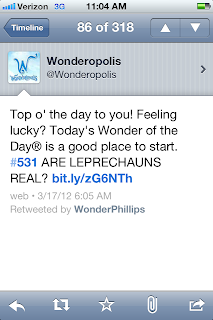
Well on Saturday morning, you can imagine how THRILLED I was when I checked my Twitter feed and saw the Wonder of the Day.

I could hardly wait for my students to enter the building! As soon as they came in, I had them get their iPads and go straight to the website. When my class saw Wonder #531 the room erupted in squeals! Such joy! Total amazement! What a feeling of empowerment!

I have been teaching my kids all year that they need to live a curious life. Ask questions. Seek answers. Look for deeper meaning. Have a set of resources that can help you find the answers to your questions. Access experts in your every day life.

Today Wonderopolis gave them a foundational experience for what it feels like to be a digital citizen and member of the global learning community. My kids have now experienced curiosity and the "search curriculum." They are inspired to ask again and are moved to let the world know their thinking matters! Today they truly believe that others are interested in their ideas and the thoughts and questions they have to share.


After celebrating this milestone, my students got right to working letting people know that their wonder had been answered. Nearly every child posted a new blog announcing the "big news." Six students created iMovies with student interviews and screen shots from Wonderopolis. Four children created instructional eBooks on how to use Wonderopolis and another is currently working on a Keynote to share with the kindergarten class.

THIS is the type of thinking and learning that matters.

My students know how to ask, use and share information. They can name and employ tools to document their thinking and take it public to teach others. They are active agents in their own curriculum development and they confidently promote learning.

What more could a teacher ask for?

THANK YOU Wonderopolis for making this monumental day of learning possible!
I know that this experience has changed my students as digital citizens and will serve as a catalyst for future learning. Three cheers for Wonderopolis and the curious kids in Room 106!

Monday, March 12, 2012

Photography with 5th Grade Students

Last week I had a very short technology class with 5th grade students in their classroom. I debated how much we could accomplish with new material in a grand total of 30 minutes on a day when students spent a tremendous amount of energy on the Illinois Standards Achievement Test. Enter the iPad.

In the next few weeks these 5th grade students are going to be focusing on photography to accompany their writing with both their classroom teacher as well as with me during Technology. The remarkable thing about having only 30 minutes to introduce this very large topic with my students but doing so with iPads, is that all 29 5th graders are sitting on the rug in front of me with a camera, digital darkroom, and publishing suite resting on their laps!


I did not have to do much of an introduction for the camera function on the iPad since they have used it frequently throughout the year. However, there are a couple of keys to crisp photographs on any point-and-shoot camera, and I’m putting the iPad in that category.

The first key is making sure your image is in focus. To assure you have the desired focus using the iPad’s built-in camera app, all you need to do is touch the area on the camera screen that you want as your focal point. The iPad will then display a blue box around that area and attempt to focus on it.

The second key to crisp photographs is reducing camera shake. This is not an easy task with the iPad, which is rather large and awkward for photography when compared with a camera. The strategy I gave to the 5th graders, was to make sure to hold the iPad with two hands in opposite corners to reduce the amount of shake. Then make sure one hand is positioned so that your thumb can stretch over to the “take photo” button on the screen. The last part with the thumb will be somewhat alleviated when the iPads are updated to iOS 5, in which case you can use the “volume up” button on the side to snap a photo.

Now with the limited time we had, I gave students three minutes to move about the classroom and take at least three photographs where an inanimate object was the main focal point. I had them arrange their compositions so that none of their classmates appeared in the photos, as the inclusion of “each other” in the images ends up providing a large distraction when sharing.

Students completed their photo-snapping, and I then gave them an introduction to an app called Snapseed. Snapseed is a very easy-to-use image manipulation app with a lot of pre-loaded effects and corrections. The regular cost of the app is $4.99, but if you keep an eye on it (perhaps with AppShopper), you can download it for free when they temporarily put it on sale as we did. Students used Snapseed to manipulate one or two of their chosen photographs, and then saved them to their Camera Roll.


The last step in this 30-minute activity was sharing our favorite photograph with classmates. This “publishing” step is made possible by a recent update to the Edmodo app (updated February, 16th), where students can now share saved iPad photos directly from within the Edmodo app. (To read more about using Edmodo on the iPad, see this earlier post by Katie!) Amazingly, there were still a few minutes left of our short time for students to comment on and provide feedback to each other via Edmodo. Here are some sample photographs by students: